Updating Accounts for the New School Year
At the start of each new school year, you need to get your Phonics Hero account ready by updating the teachers, students and classes.
Before getting started, you will need: the new class lists with students’ names and the teacher managing each class (first name, last name and email address).
Please note: only the teachers designated as admins on a school’s Phonics Hero account have the ability to make these changes.
i
Where to find this: Log in › Manage Accounts
- Add and/or delete teachers. Please note: it is not possible for teacher admins to reassign Phonics Lessons licences to different teachers. To do this, please get in touch.
- Scroll through your listed classes and check you have all the classes required for the new year. We recommend you do not delete any old classes and only add classes at this point.
- Starting with one class from the highest grade/year (e.g. Year 6), expand the class and for each student listed, do one of the following: If you need to double check whether a child is to continue with their account, create a holding class (e.g. ‘unsure accounts’) and move them there to be processed later.
- Repeat step 3 for each class of students, working backwards from the highest to lowest grade/year.
- Add your new students (e.g. Reception/Kindy/Pre-school) by either:
- Using a spare account by clicking use them now next to the number of spares at the top of the Manage Accounts page.
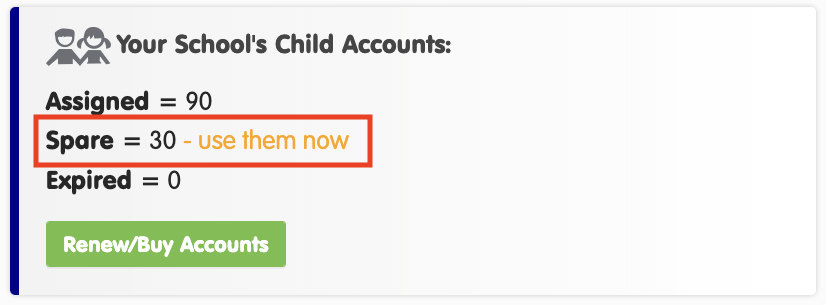
- Or purchasing additional accounts by clicking the green Renew/Buy Accounts button shown above.
Please note: during this step-by-step purchasing wizard, if you are using several spares, you are able to copy and paste children’s names and classes from Word or Excel.
- Using a spare account by clicking use them now next to the number of spares at the top of the Manage Accounts page.
- Clean up your account by deleting any empty classes and ensure the right teachers are assigned to each class.
- Export the children’s login details. Remember, students can use their accounts at home and school, through the website or our app.
- When you give the logins to teachers, ask them to double check that their students are on the right level and move them according to their latest assessment data. If a student has had a break from playing, Phonics Hero is unlikely to match their real-world reading level, and the child may become demotivated if the level is too easy or too difficult.
- Consider using Level Pacing to control when new Phonics Hero levels are released to your students, so the game stays in step with what you’re teaching in class.
And now you’re ready for the new school year! If you need further assistance with your account, please get in touch with a member of our team.
