Buy Child Accounts
You can purchase new or renew existing Child Accounts directly within your Teacher Account, ready for immediate use.
Note: If you are a school administrator who does not have access to Phonics Hero and would like to purchase Child Accounts for your school, follow these steps.
Note: If you require a PO on your invoice, please include it when you purchase or email it to us at info@phonicshero.com.
To purchase accounts as an administrator across the whole school:
Click the green button in the information bar at the top of the page.

To purchase Child Accounts for just your class:
In the Classes & Students section, click on your class name to expand it.

Then click the green Renew/Buy Accounts button.

Then follow the steps below:
- If you are currently trialling, in the window that opens choose the option to Buy existing and/or additional Child Accounts. If you already have a paid subscription, you will go straight to the next step.
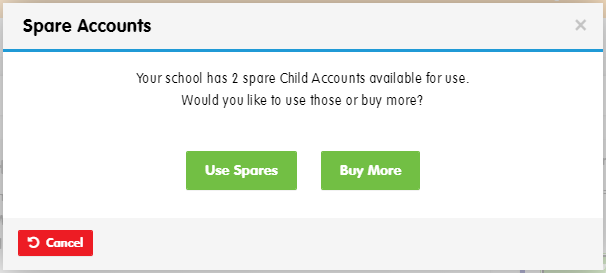
- If there are spare accounts available, a pop-up will appear asking if you would like to use your spares or buy new accounts. Click Buy Now to purchase new accounts.
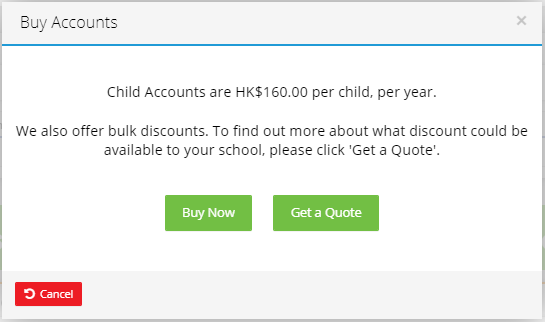
- You’ll be shown the price per student per year. Click Buy Now.
- You’ll be given the option to buy existing accounts, add new accounts, or both.
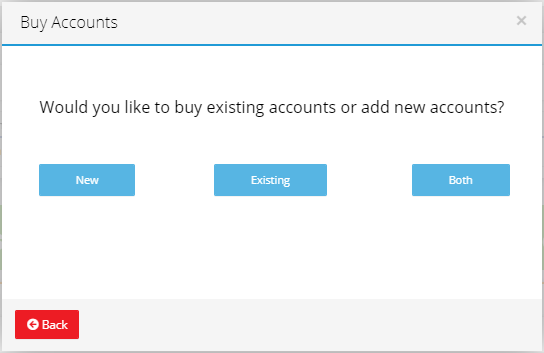
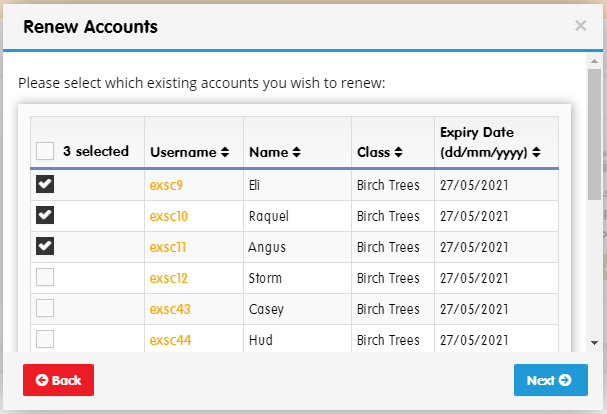
The next steps will depend on what you choose here. - If you’re purchasing existing accounts, select the checkboxes to choose which accounts you want to purchase from your list of students.
If you’d like to purchase new accounts, enter the number of new children you’d like to add. Then enter the children’s names, class name and — if necessary — change their starting level, then click Next.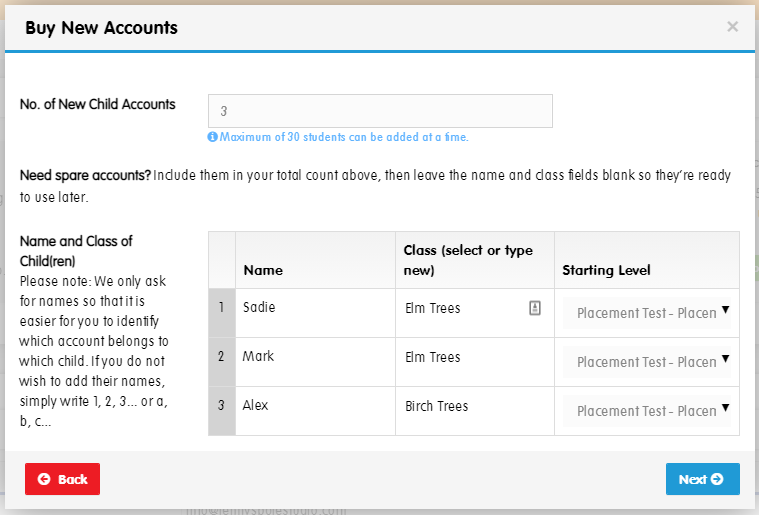
If you are purchasing Child Accounts for your whole school, continue with the steps below. If not, you may skip to step 6.
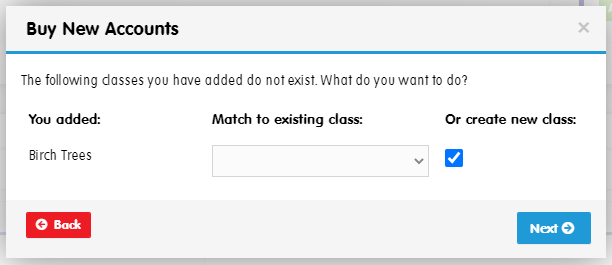
- If you have assigned new accounts to a class which doesn’t yet exist, follow the prompts to match it to an existing class or create a new class by selecting the checkbox, then click Next.
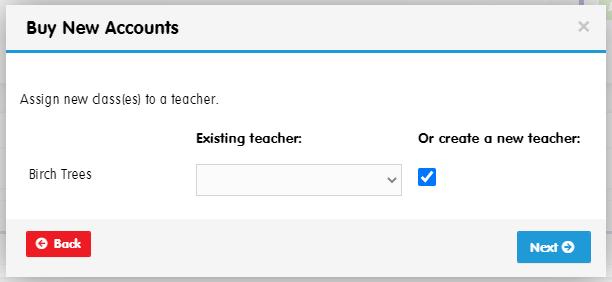
- If you have chosen to create a new class, you can select an existing teacher or choose to create a new one by selecting the Create a new teacher checkbox, then click Next.
- If you have chosen to create a new teacher, enter their details in the window that appears and click Next.
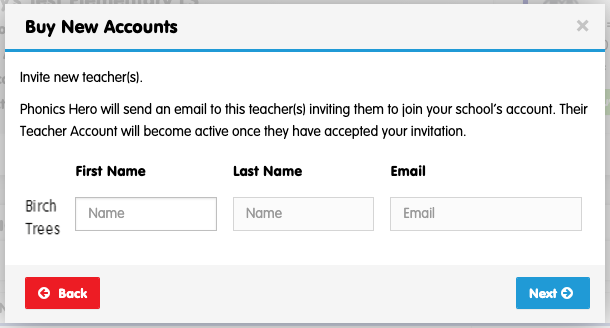
The teacher will receive an email invitation with instructions to create a password — or, if they already have a Phonics Hero account, to transfer their account to your school.
- Use the drop-down menu to select how long you would like the accounts to be active for — 1 year or 6 months.
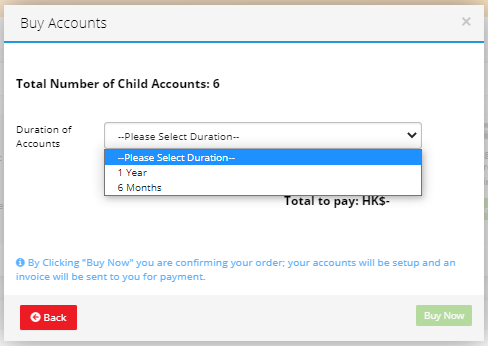
- A summary of your order will appear. Once you are ready to finalise your order, click Buy Now.
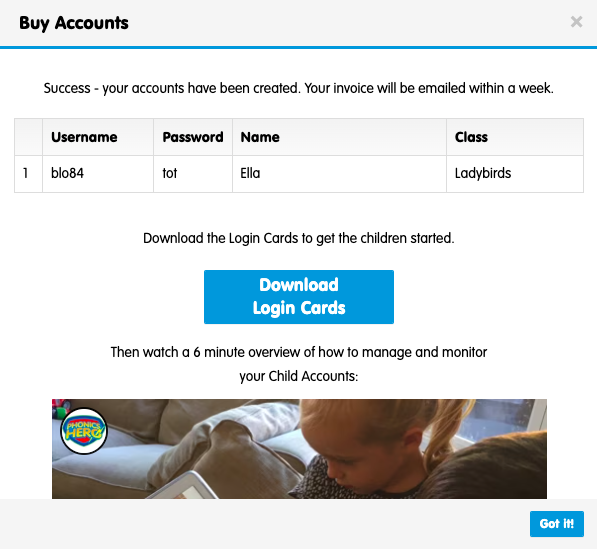
Your accounts have now been created and are ready to use! You can download Login Cards to distribute to the children and download personalised letters to send home to parents.
You will receive your invoice detailing payment methods within one week.
Watch our how-to video:
