Change a Class’s or Student’s Level
When children first log in to play Phonics Hero, you’ll have the option of each child starting from Level 1 or taking the Placement Test. However, you may find that you need to change the level of your whole class so that they are all working on the same thing, or just one or two students based on the results you have seen.
i
Where to find this: Log in › Manage Accounts › Classes & Students
- Click on the class name to expand the list.

- Use the checkboxes next to the relevant children’s usernames, or use the checkbox at the top of the list to select the whole class.
- Click the blue Change Level button at the top and select the level and skill you would like the children to start with.

- A green message will appear in the top right corner of the screen to confirm the accounts have been successfully updated.
The next time the children log in, they will be taken straight to that level and skill.
If you would like children to replay an earlier level or game without changing their level:
- Log in to the child’s account.
- Click the map button in the upper left-hand corner.
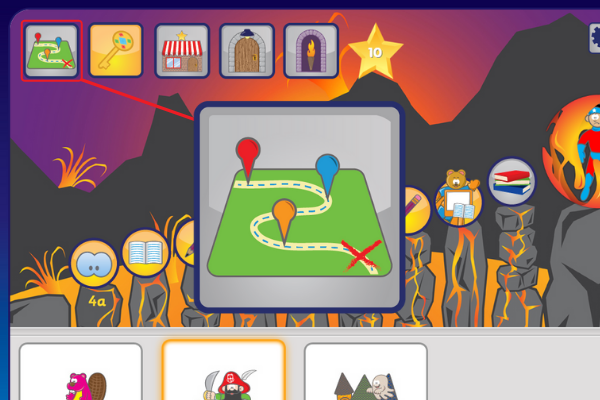
- You will be taken to the level overview screen.
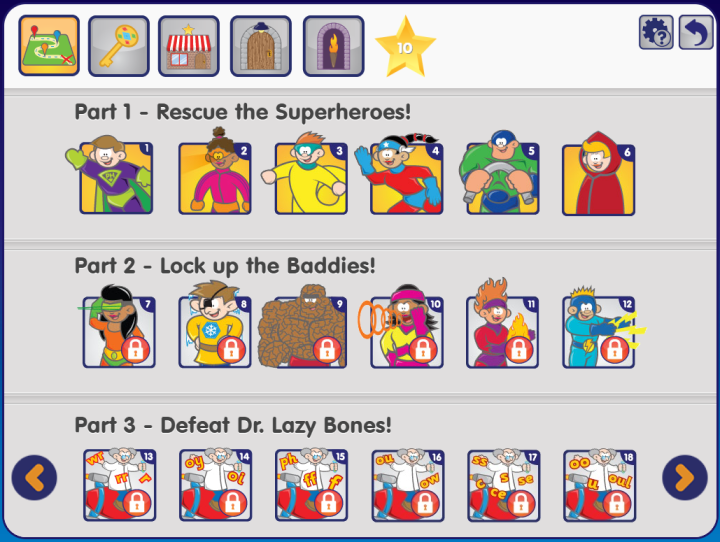
- Select the level you would like the child to play. Levels with the locked icon cannot be played yet, as Phonics Hero must be completed sequentially.
See the steps:
