Adding and Buying Child Accounts
This article explains how to add Child Accounts to your Phonics Hero school account. Admins can add accounts across the whole school; teachers can only add accounts for their own classes.
You have three options for adding a child: use a spare account, reset an existing account, or create new accounts.
Jump to: Use a spare account · Reset an existing account · Create new accounts
Option 1: Use a spare account
Spare accounts are unused Child Accounts already included in your subscription. If you have spares, you’ll see the number displayed in the information bar at the top of Manage Accounts along with an orange use them now link. Press this to launch the wizard and assign them to new students. See our spare accounts article for full steps.

Option 2: Reset an existing account
If a child has left the school or no longer uses Phonics Hero, you can reuse their account for a new child. It will reset everything, clearing the previous child’s progress and login details. To do this, select the checkboxes next to the accounts you want to reset and press the red Reset and Transfer button at the top right of the class, then follow the wizard. See our reset account article for the full steps.

Option 3: Create new accounts
The green button is labelled Renew/Buy Accounts (or Add/Buy Accounts on a trial, where accounts are free).
As an administrator — across the whole school
Press the green button in the information bar at the top of the page.

As a teacher — for your class only
In the Classes & Students section, press your class name to expand it, then press the green Renew/Buy Accounts (or Add/Buy Accounts) button.


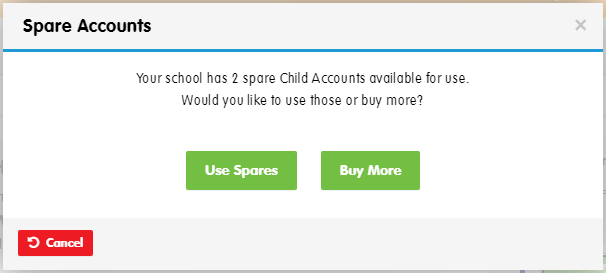
If you have spare accounts available, you will be asked whether to use them or buy new — press Buy Now if you want to add new accounts. Follow the wizard to complete your purchase.
Once you’ve completed all your student details, your accounts are ready to use.
You will receive your invoice detailing payment methods within one week (unless oyu are on a trial).
Watch the steps in action:
