Why Are the Games Frozen or Not Playing Sound on Safari, Microsoft Edge or Firefox?
We recommend playing Phonics Hero on Chrome for the best experience. If you’re using Safari, Firefox or Microsoft Edge, your browser may be blocking audio autoplay — which can cause the games to freeze, not load correctly, or play without sound.
Jump to your browser: Safari · Microsoft Edge · Firefox
i
The steps below were correct at the time of writing, but browser settings change with updates. If the path has moved, search “autoplay” in your browser settings and enable audio and video for phonicshero.com.
Safari
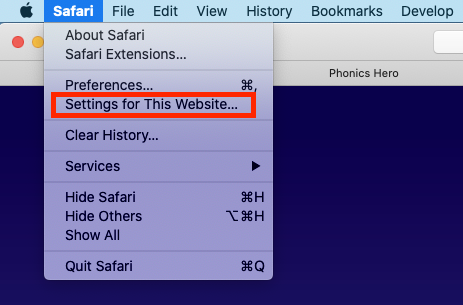
- Click ‘Safari’ in the top menu, then click ‘Settings for This Website’.
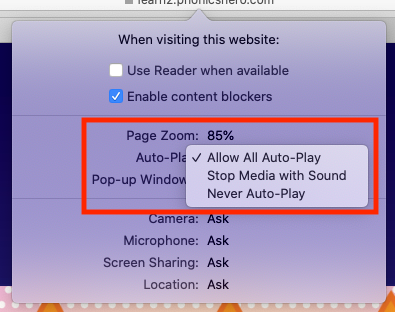
- In the pop-up window, click ‘Auto-Play’ and choose ‘Allow All Auto-Play’.
- Restart your browser and log back in to Phonics Hero.
Microsoft Edge
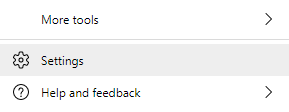
- Click the three dots in the top right of the browser, then click ‘Settings’.
- Click ‘Cookies and site permissions’ in the left menu, then scroll down and click ‘Media autoplay’.
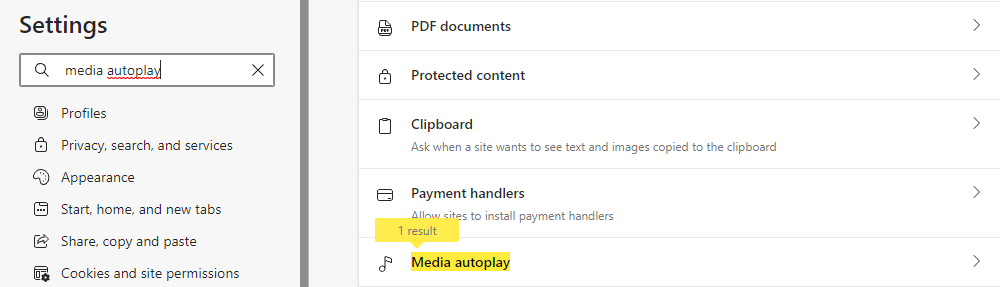
- Click the drop-down menu next to ‘Control if audio and video play automatically on sites’ and choose ‘Allow’.

- Restart your browser and log back in to Phonics Hero.
Firefox
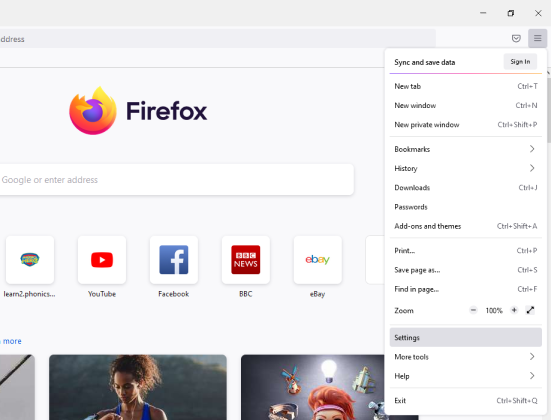
- Click the three lines in the top right of the browser, then click ‘Settings’.
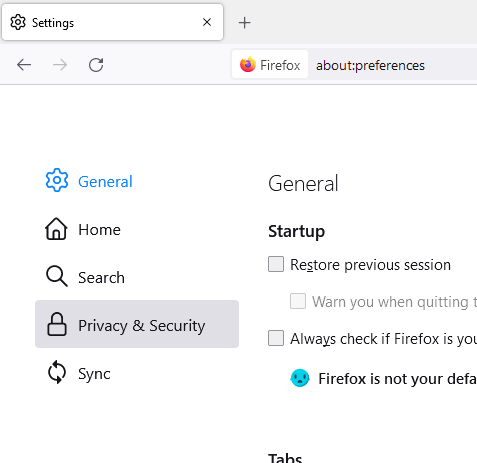
- Click ‘Privacy and Security’ in the left menu, then scroll down to ‘Permissions’ and click ‘Settings’ next to ‘Autoplay’.
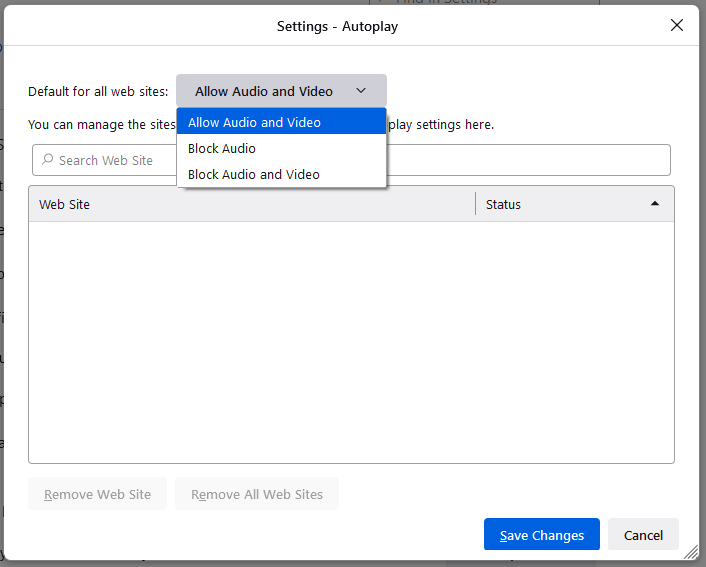
- In the pop-up window, click the drop-down menu and select ‘Allow Audio and Video’, then click ‘Save Changes’.
- Restart your browser and log back in to Phonics Hero.
The games should now load and play correctly. If you’re still having trouble, please get in touch and we’ll be happy to help.
