
Clear Your Cache
If Phonics Hero isn’t loading properly or you’re seeing an old version of a page, clearing your cache will usually fix it.
Jump to: Chrome, iPhone or iPad, Android
Clear cache on Chrome (computer)
- Click the three dots (⋮) in the top-right corner of Chrome.
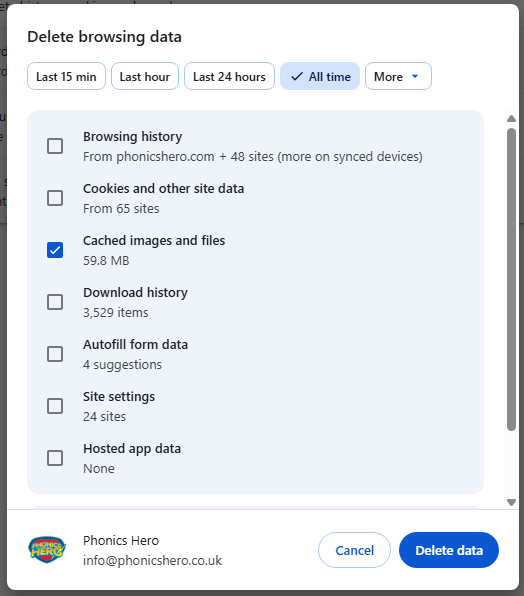
- Click Delete browsing data.
- Set the time range to All time.
- Select Cached images and files.
- Click Delete data.
Clear cache on iPhone or iPad
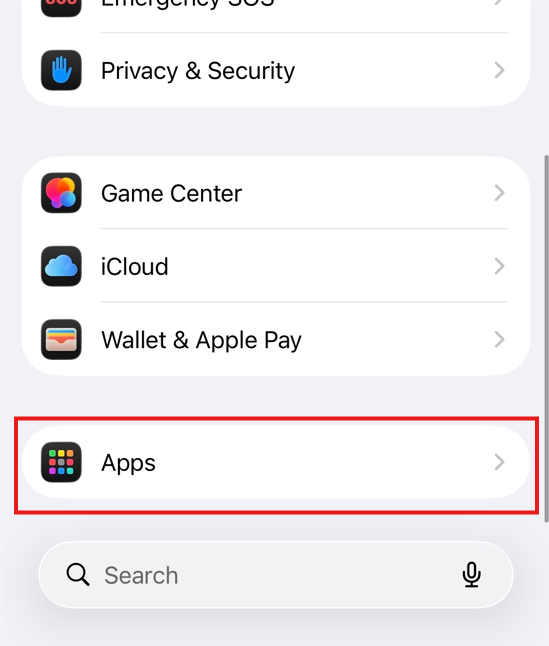
- Open the Settings app.
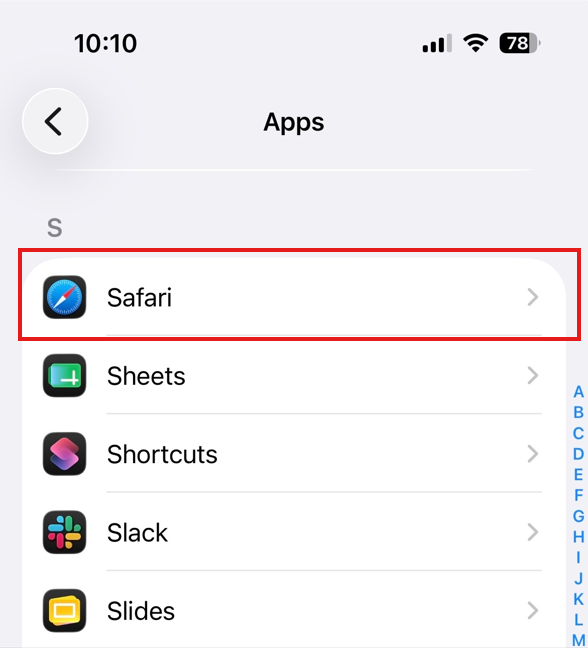
- Tap Apps, then tap Safari. (Note: on iOS 17 and earlier, this setting may appear under Settings > Safari)
- Tap Clear History and Website Data.
- Tap Clear History and Data to confirm.
Clear cache on Android
- Open the Settings app.
- Tap Apps.
- Tap Phonics Hero.
- Tap Storage.
- Tap Clear cache.
Note: if you can’t find this, search for how to clear an app’s cache on your specific device as it can vary across the different Android devices.
